How To Select A Medicare Prescription Drug Plan Online – Step By Step
First, have your prescription drug list ready and then click this link to get started; https://www.medicare.gov/plan-compare
You can keep this page open in another tab and refer back to it as you go through the process. Instead of doing this yourself online, you can also call 1-800-Medicare (633-4227) and speak to a representative to review and enroll in a plan.
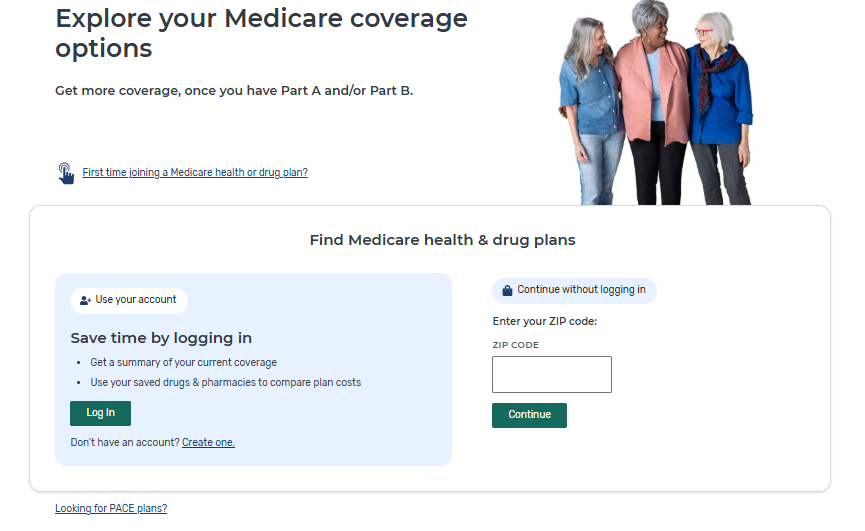
Once you’re on the Medicare Plan Finder page, you should see an image like below. Enter your zip code in the box and click continue.
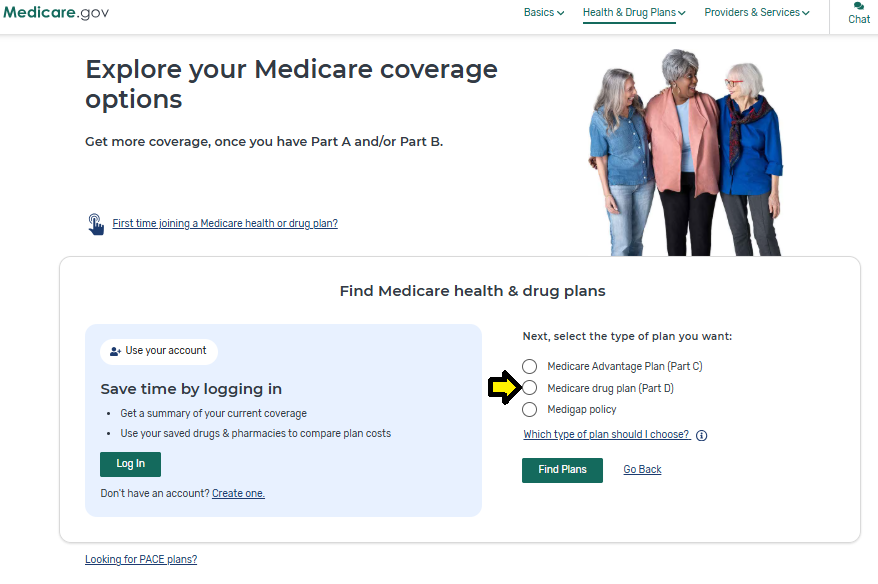
Next, you will see a menu of different plan options. Be sure to click on “Medicare Drug Plan (Part D)” from the menu and then click “Find Plans.” Note that if you select another type of plan from the menu and then want to go back, it may confuse things for you.
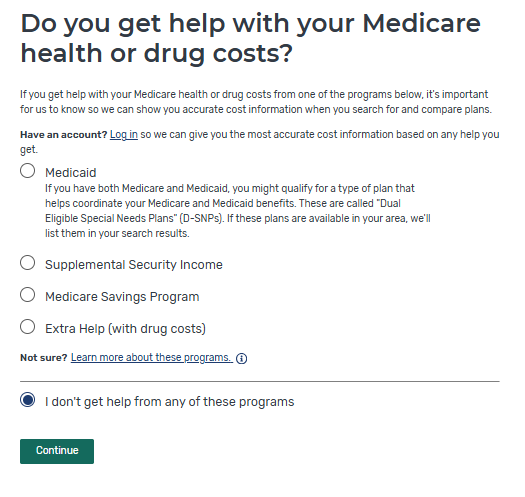
On the next page, you will select your extra help status. Extra help is for low to moderate income Medicare recipients who receive a letter each year that they get extra help with their prescription drugs. Most Medicare recipients don’t get this. Click an option from the menu and then continue.
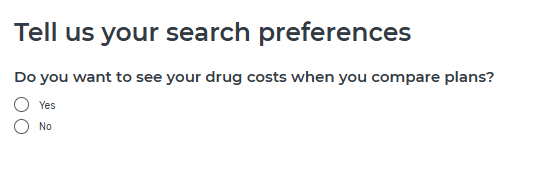
Next, click “yes” to see plans with drug costs, then click continue.
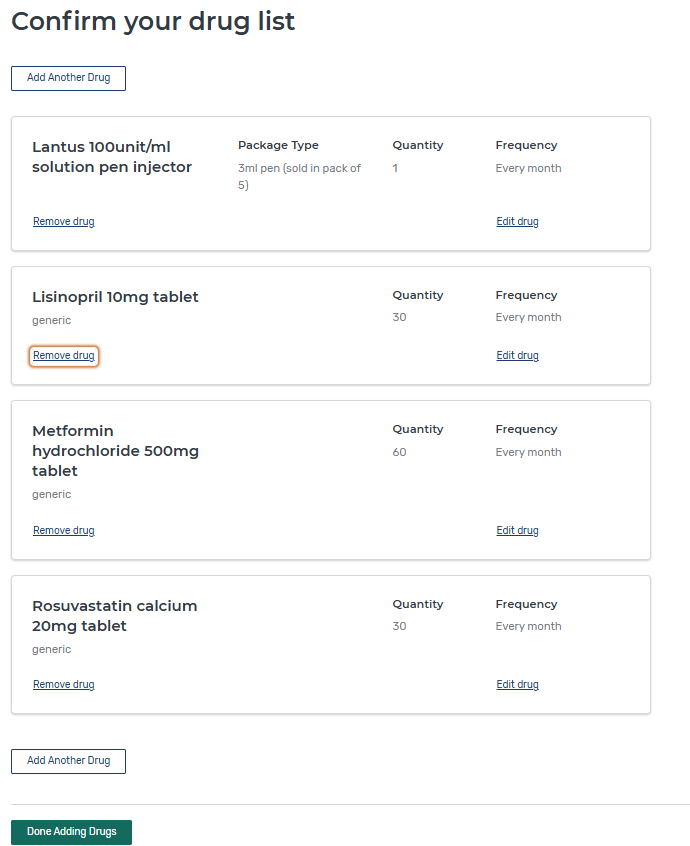
Now is where the fun begins. On this page you will begin entering and adding your prescription drugs. Click on the box and enter your first prescription. When you begin typing, you will see a dropdown menu of options. Select your prescription, enter the correct dosage, and click add to add the drug to your list. Note that if you enter a brand name but you take a generic where it’s available, the system will give you the option to select the generic.

Keep adding your drugs until your list is complete like the image below, then click “Done adding drugs.”
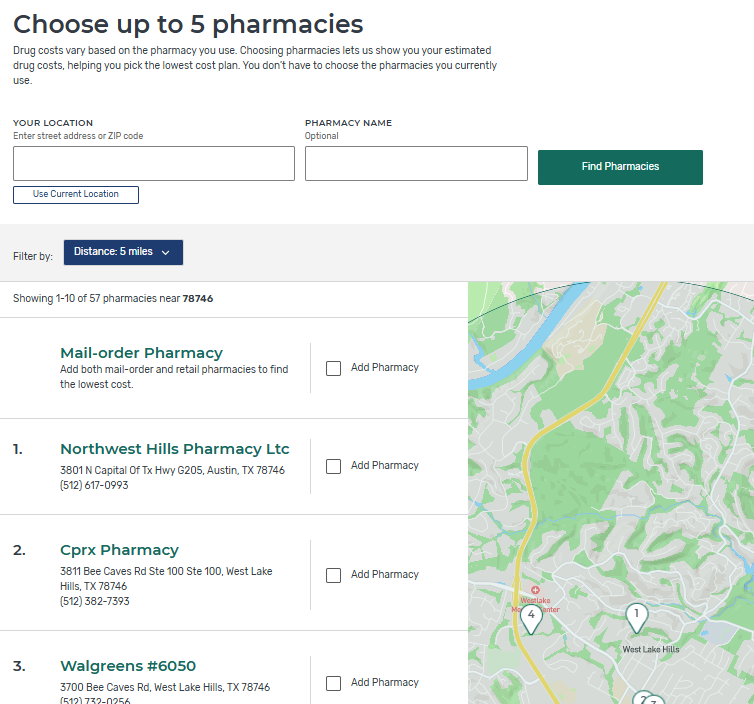
Once you’re done adding your drugs, on the next page you will select your pharmacies. You can select up to 5 pharmacies, including mail order. It’s good to select 5 options and a mix of competitors in order to have the best selection of plans and lowest prices. Click “Add Pharmacy” next to each option you would like to add and then click continue to view plans in the lower right corner.
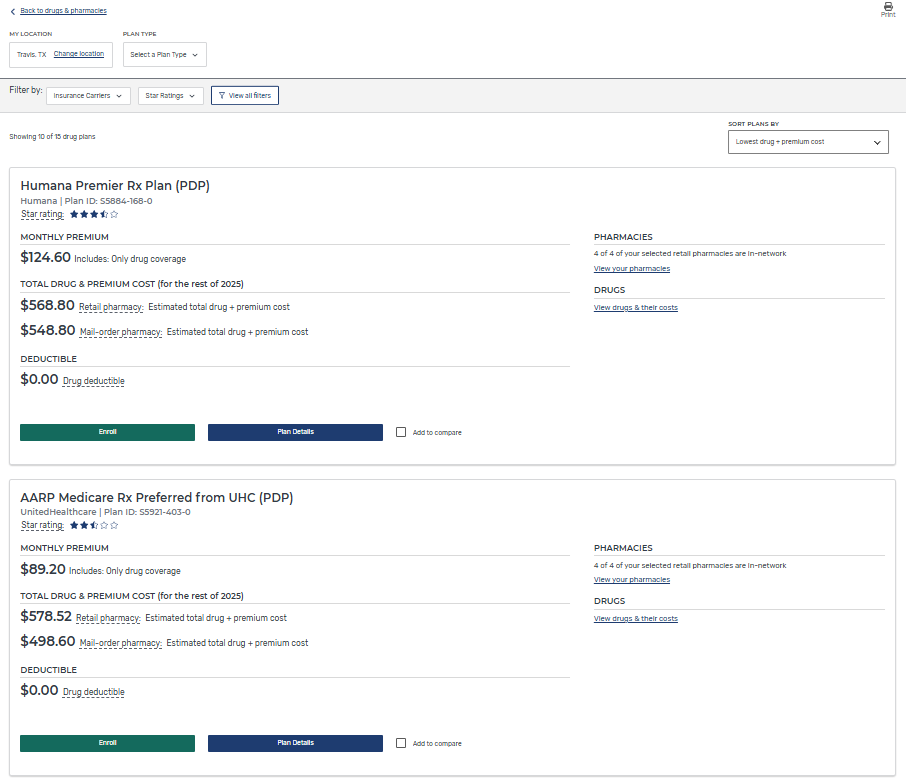
Now you will have a list of plans to review and choose from. There are lot’s of menu options to choose from for sorting plans, such as sorting by carrier, etc. To arrange the plans by annual cost, which is what we recommend, be sure the menu in the upper right says “Sort Plans by Lowest drug – premium costs.” Once you have your list sorted, you can now click “Plan Details” under each listing for more information.
Now that you’re within the plan details, you’ll be able to see important info on your prescription costs. You will see sections about pharmacies, monthly prescription costs, and annual costs. One of the most important sections is the “Estimated Drug Costs” section, as seen below.
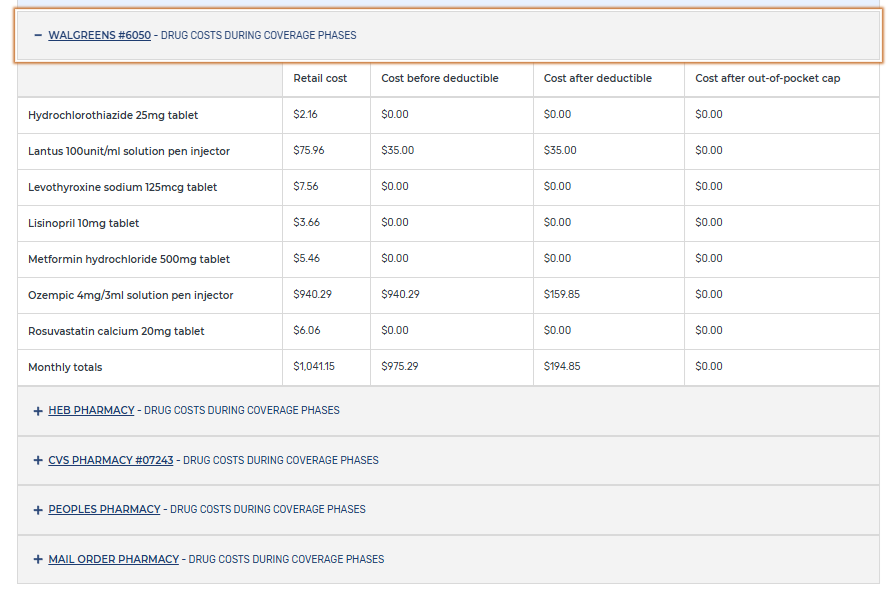
You will see your prescriptions listed and several other columns related to costs. The main columns you want to pay attention to are the “Cost before deductible” and the “Cost after deductible.”
Many plans don’t have a deductible for certain generics. If you see a cost listed in the “Cost before deductible” column, this means that the drug is subject to the deductible. Some brand name drugs are expensive. If the “Cost before deductible” seems really high, just understand that what is listed may be wrong. The cost of the drug can only go as high as the deductible before you reach the next phase, “Cost after the deductible.” To know what the deductible is, scroll to the top of the page where it’s listed.
Once you’ve analyzed the plan and if you want to do the same for other plan listings, scroll back to the top and on the top left click “Back to plans.”
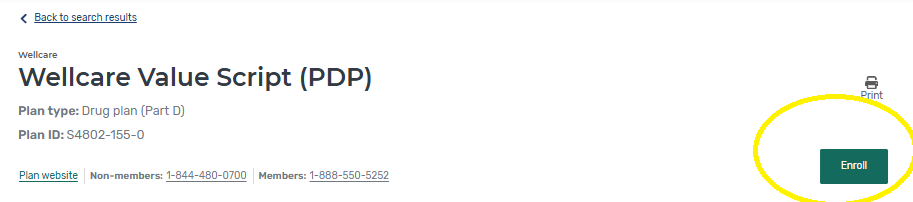
If you’re ready to enroll in a plan online, just click “Enroll” in the upper right corner within a listing or on the main listings page.